Connected Accounts
Manage linked banks here. Add, relink, or remove institutions at any time.
Loading account...
Manage linked banks here. Add, relink, or remove institutions at any time.
Name
-
-
Securely connect any bank, credit card, or other accounts you want transaction data for using Plaid, the industry standard for secure data sharing between applications and banks. You can learn more about Plaid here. You can connect all your accounts now or add one now to test, then add the rest later.
Choose your preferred time zone for how the “last updated” timestamp appears in your Google Sheet. This timestamp reflects the last time new transaction data was fetched from your accounts and pulled into the sheet. Transaction rows use UTC timestamps from Plaid (no conversion to your selected zone).
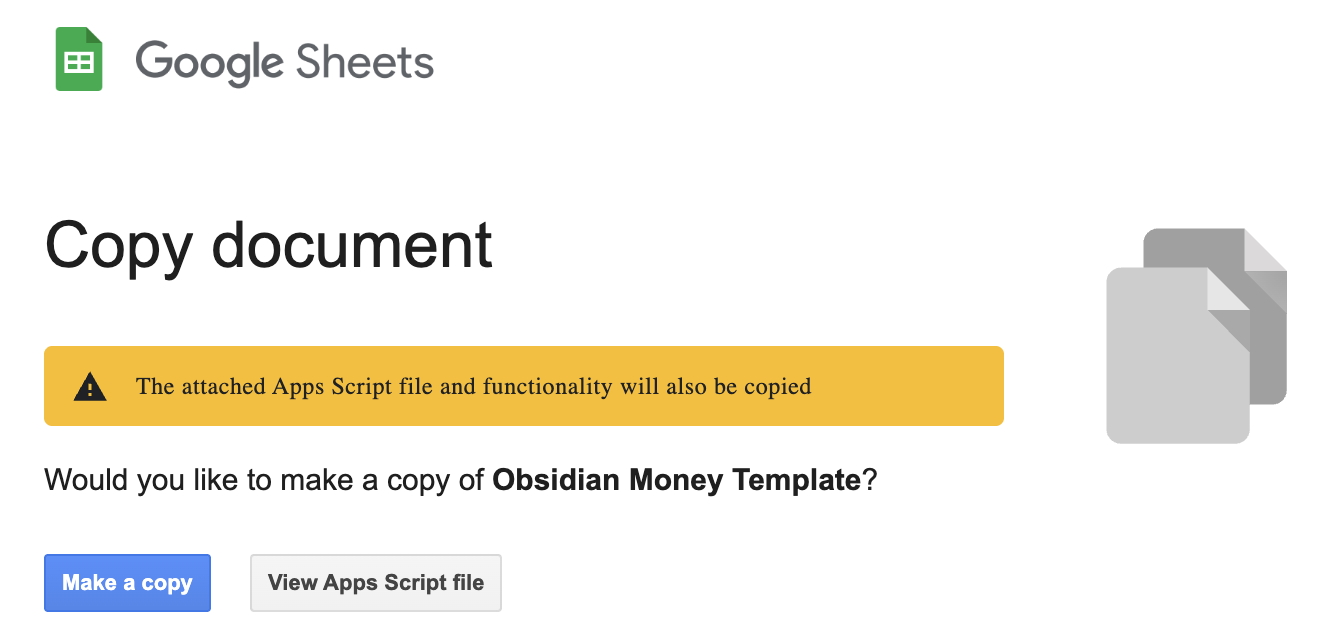
The link below will take you to a screen where you can make a copy of the template sheet. The screen will look like the image below and have a message about App Script. App Script is a Google tool that allows code to manipulate a Google Sheet. Obsidian Money uses an App Script so new transaction data can automatically populate in the sheet every time you reload the page without you having to do anything. Click "Make a copy" to continue. You can rename the Google Sheet file to whatever you want after this step.
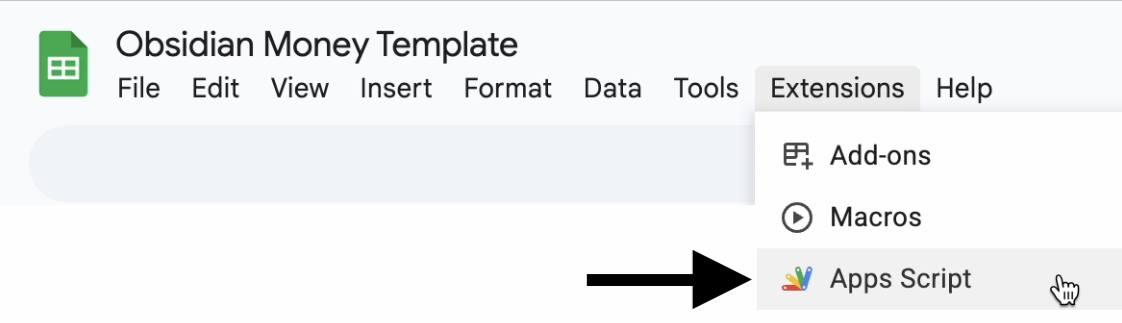
Now, you will set up the App Script that triggers Obsidian to fetch your latest transaction data whenever the sheet is opened or refreshed. In your copied spreadsheet, open the Apps Script project: use the menu Extensions → Apps Script. A new tab will open with the App Script script editor.
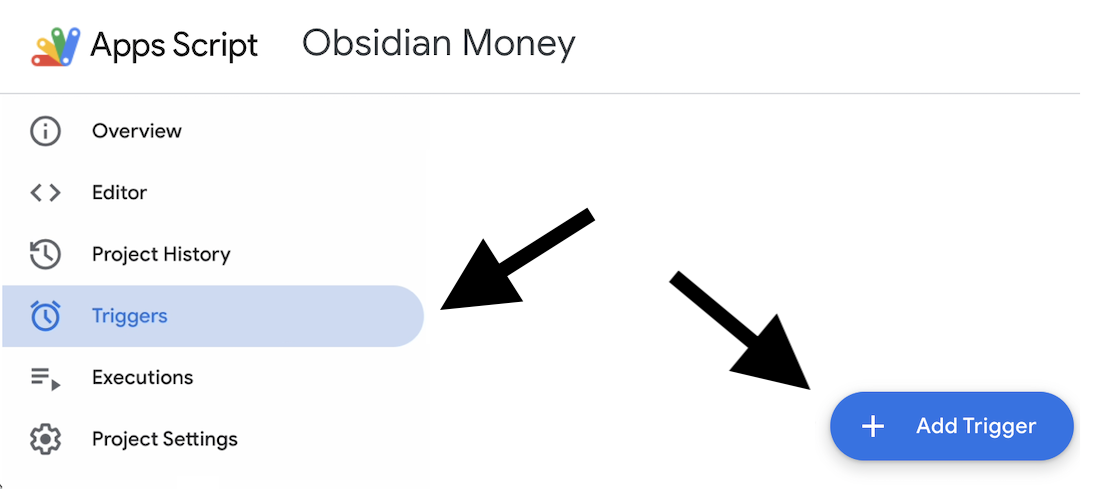
In the Apps Script editor, click Triggers (the alarm clock icon) in the left sidebar, then click + Add Trigger.
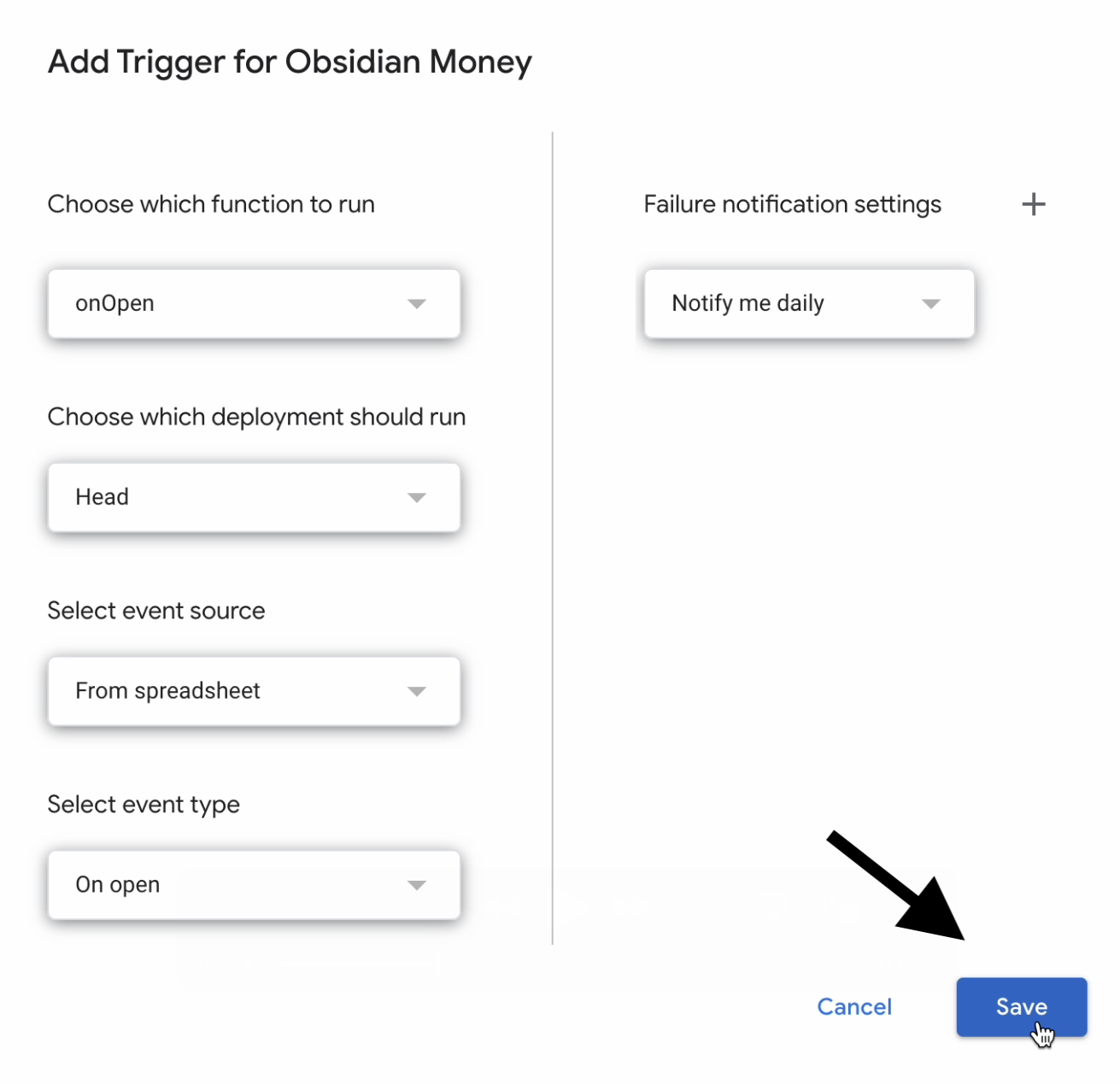
Set the trigger using the same parameters shown in the image below. In most cases, the auto-populated settings will already be correct. Once you have confirmed they match the image, click Save, which will open a permissions window (directions for how to address the permissions window are in the next step).
When prompted, click Allow to grant the permissions needed for Obsidian Money to fetch your latest transaction data whenever the sheet is opened or refreshed. Obsidian Money only requires two permissions: access to this specific spreadsheet, and permission to connect to an external service, which is required to pull in your latest transaction data.
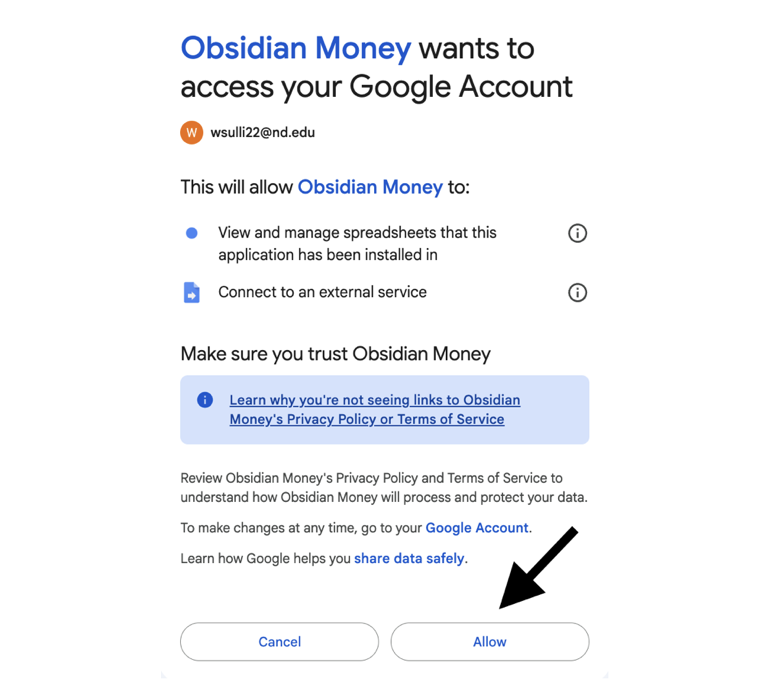
Once you have completed the steps above, you can close the current window and return to the Google Sheet.
Use the button below to generate your secret key, then paste it into the designated cell in your Google Sheet. This key securely links your Google Sheet to your Obsidian Money account and ensures your transaction data is encrypted in transit and decrypted before it is written to the sheet. For your security, the key will no longer be visible after you close or refresh this page, so be sure to copy and save it before leaving.
No secret key yet. Create one below.
Refresh the Google Sheet to initially load up to 24 months of past transaction data for each connected account. After that initial load, each refresh adds new transactions to the bottom of the sheet and updates existing pending transactions with their latest status. Some transactions may take up to 24 hours to appear in the sheet because of how banks and Plaid process transaction data. Also, you won't need to return to the Obsidian Money website after this step unless you want to add more or reconnect an account, which you can do at any time.
Once everything is working, click the button below to mark your setup as complete. Don't worry, you can always access these instructions later at any point from the side panel.